Manage workspace modules, object visibility, and module troubleshooting in Sanka.
Last updated: July 14, 2026
This guide explains how modules organize objects and tools in a Sanka workspace, how to edit module structure, and what to check when a user cannot find a page, object, action, or workflow.
What modules control
Modules group related objects and tools in the workspace navigation. They help teams keep Sanka organized around business areas such as contacts, commerce, procurement, process, talent, and reports.Modules affect workspace navigation and availability, but they do not replace user permissions. If a user cannot access something, check both:
Whether the relevant module and object are included in the workspace structure
Whether the user has permission to view or edit that object
A missing page is not always a product bug. It may be caused by a hidden module, removed object, user permission, custom module setup, workspace plan, or an object that has not been added to the user's navigation.
Sample prompt
/sanka Review why this user cannot access the page before suggesting a fix. Check the workspace module setup, whether the object is included in a module, the user's role and object permissions, the workspace plan or enabled features, and whether another admin changed the module recently. Do not change modules or permissions until I approve the plan.
Expected behavior
When modules are configured correctly:
The workspace navigation shows the enabled modules and their objects
Objects inside a module can be opened by users who have the required permissions
Initializing modules restores the default module layout without deleting existing records
Removing an object from a module can hide it from navigation without deleting its records
Reordering objects changes navigation order, not record data
Module changes should be reviewed together with user permissions when investigating access issues
Manage modules
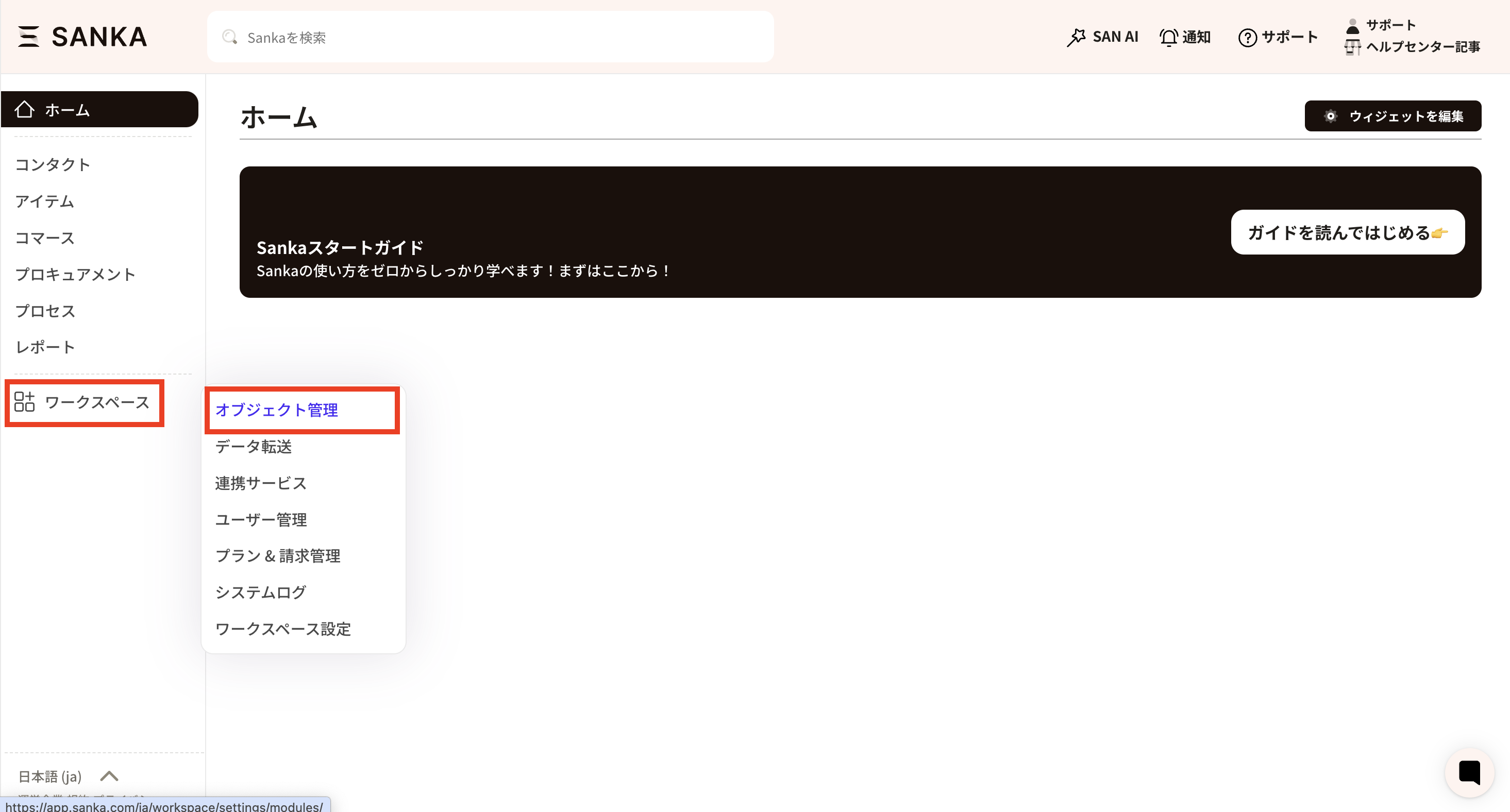
From the Sanka home screen, open Workspace > Object Management.
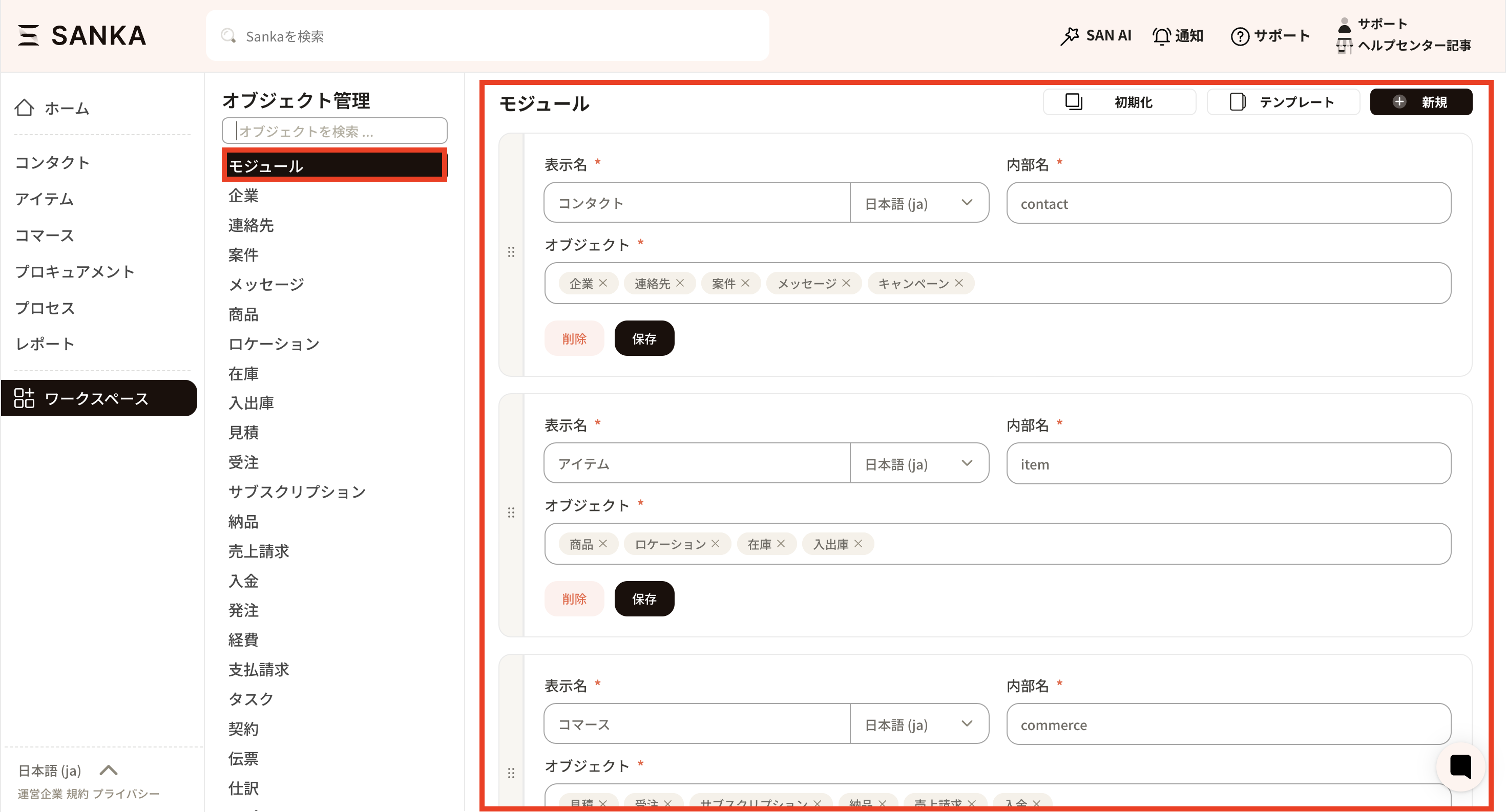
Select Modules to view the existing modules. The list usually reflects the modules selected when the workspace was created.
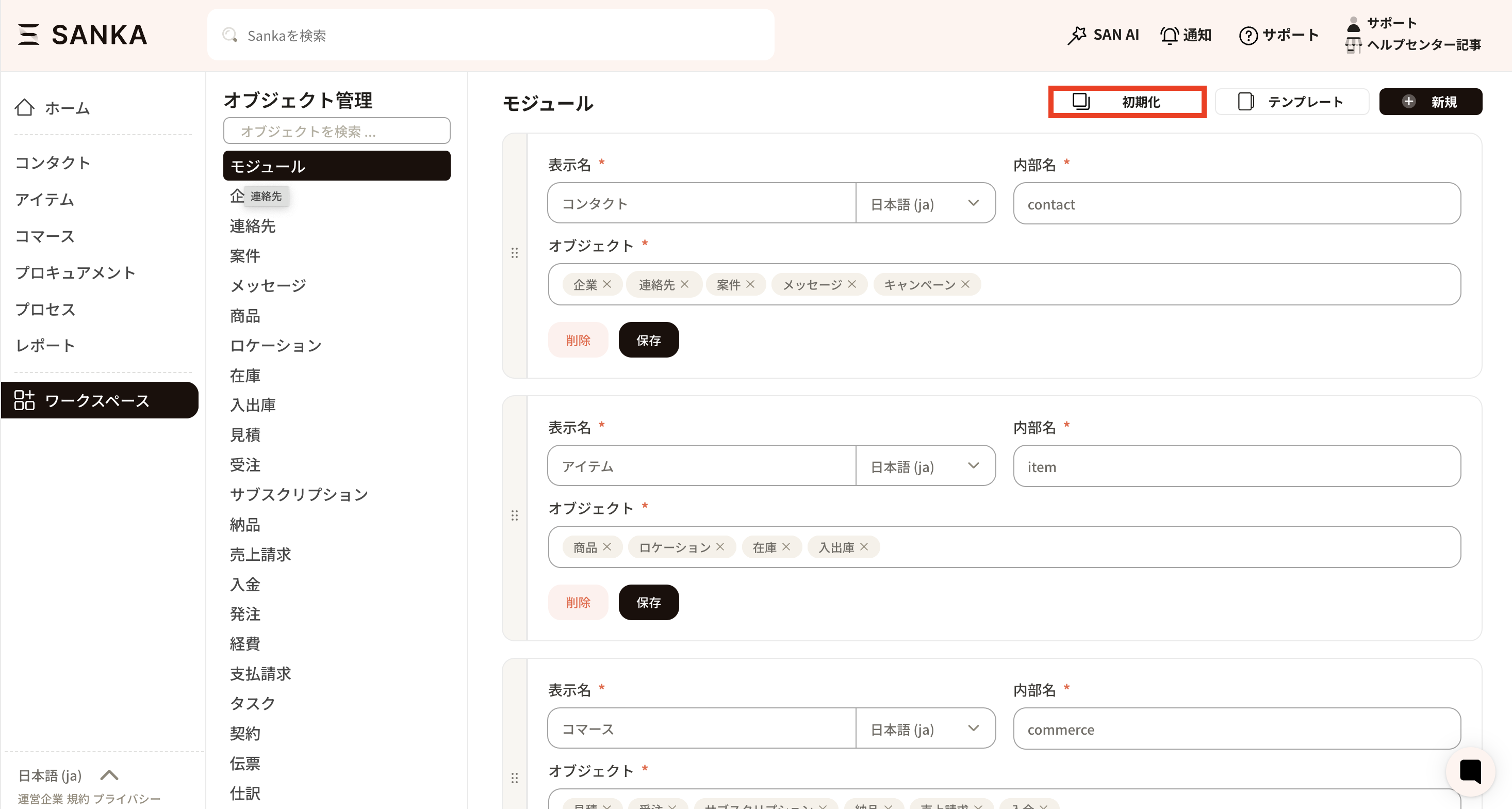
To restore the default module structure, click the initialize button. Initializing modules does not delete records stored in each object.
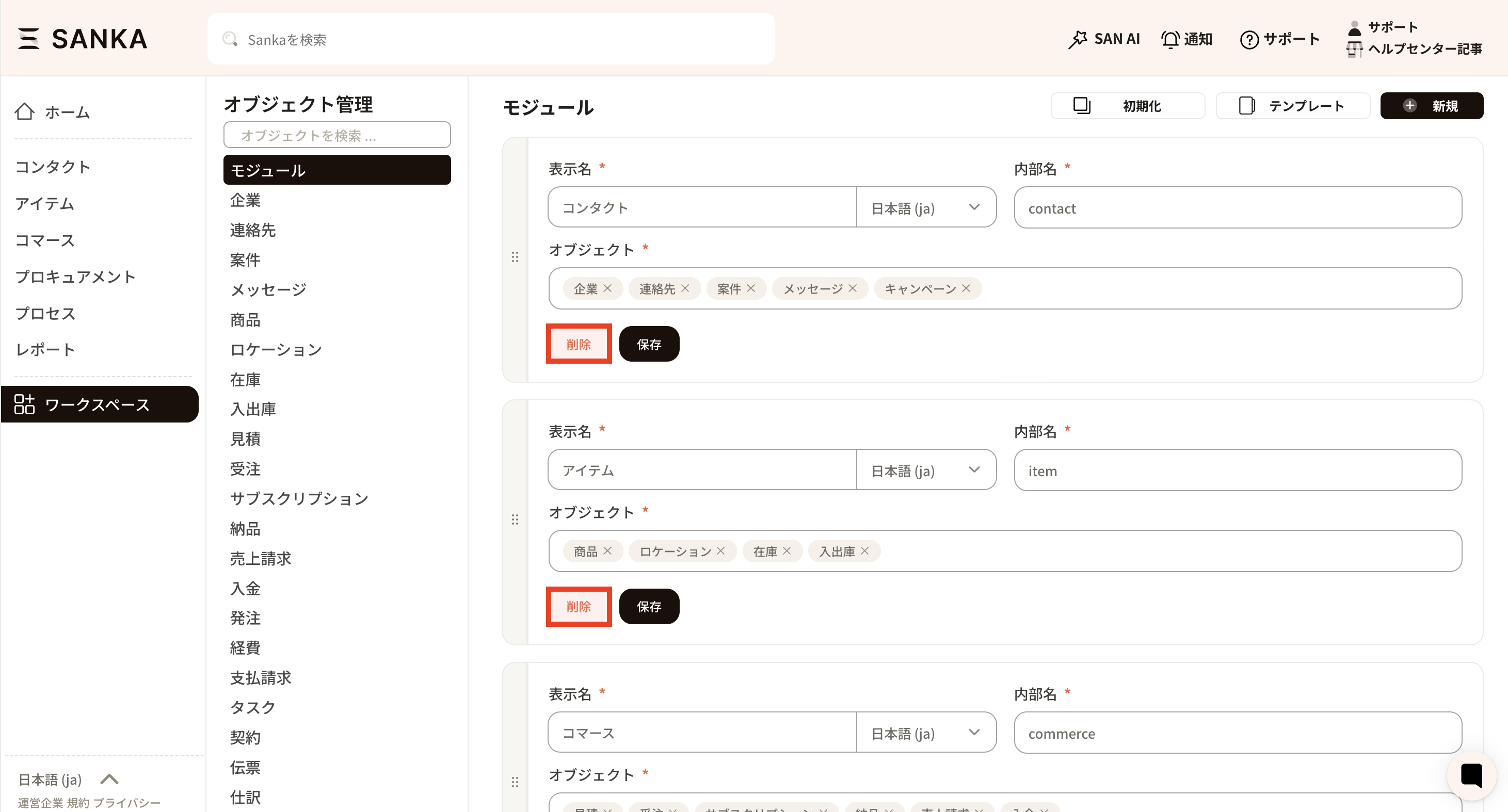
To remove a specific module from navigation, click Delete for that module.
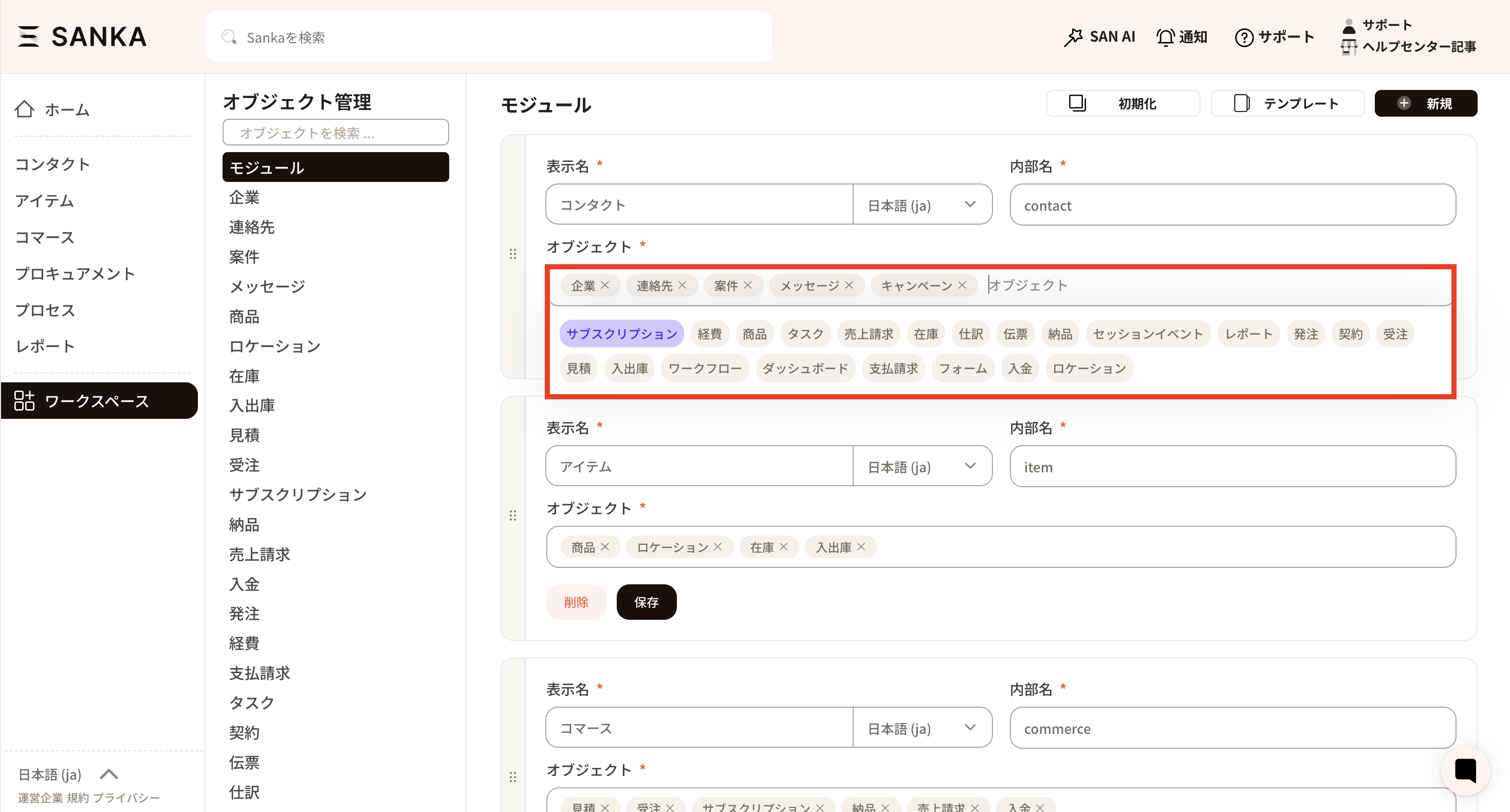
To change the objects inside a module, click the object area. Add or remove objects as needed, drag objects to change order, then click Save.
Create a module
You can create a module from a template or from scratch.
Use a template
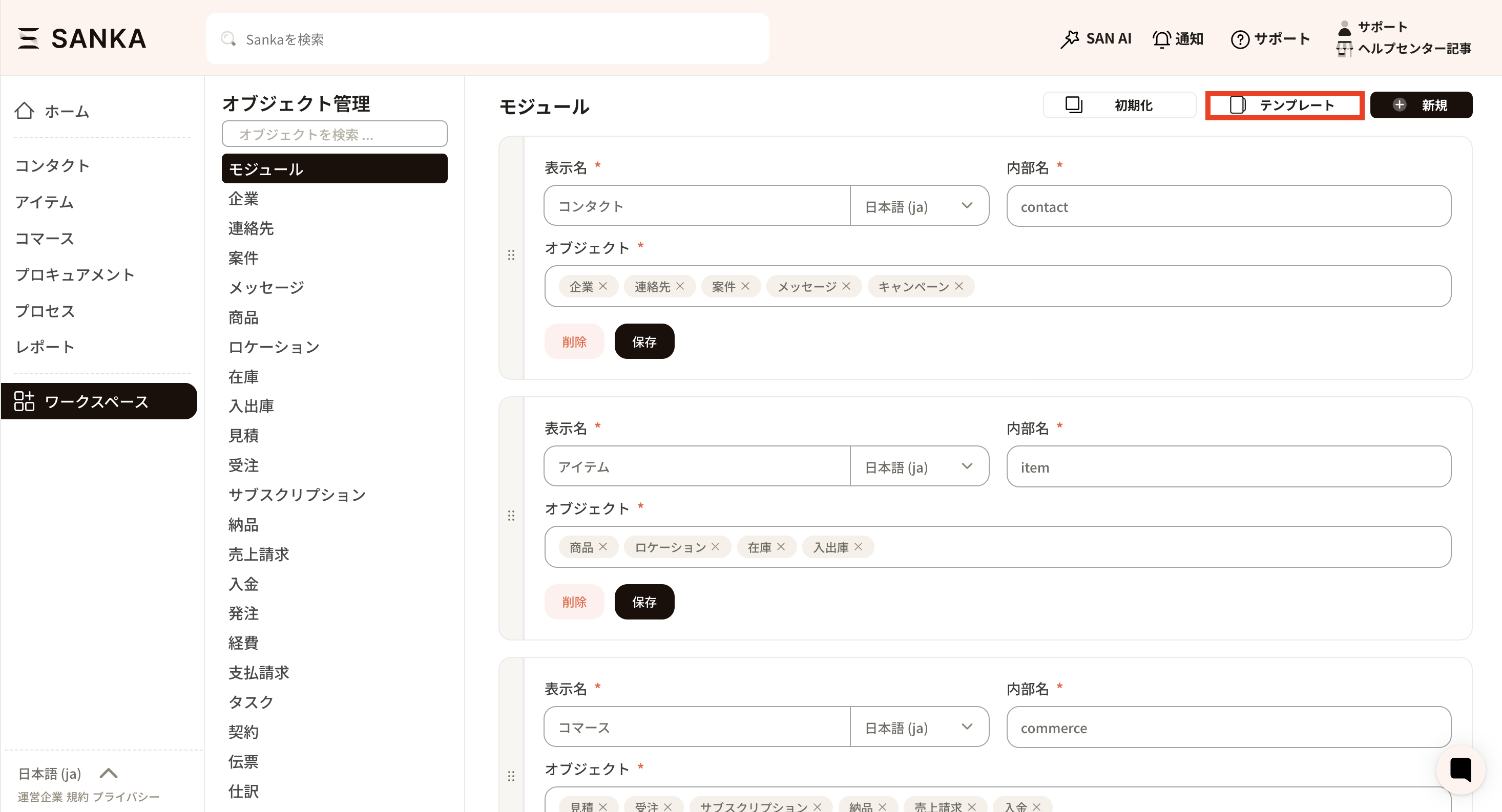
Click the template button.
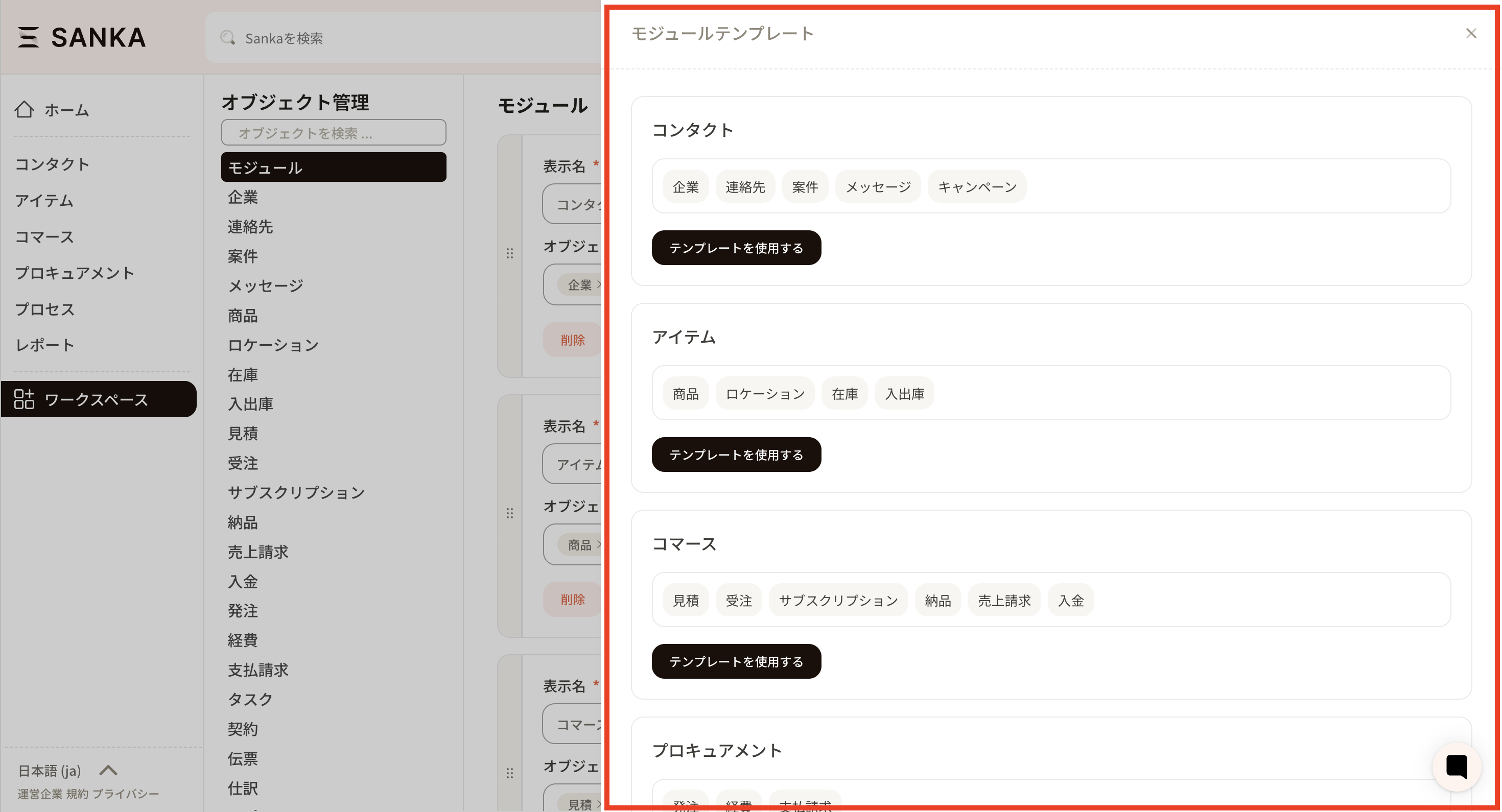
Choose a template that matches the business area you want to add.
Click Use Template.
Create a custom module
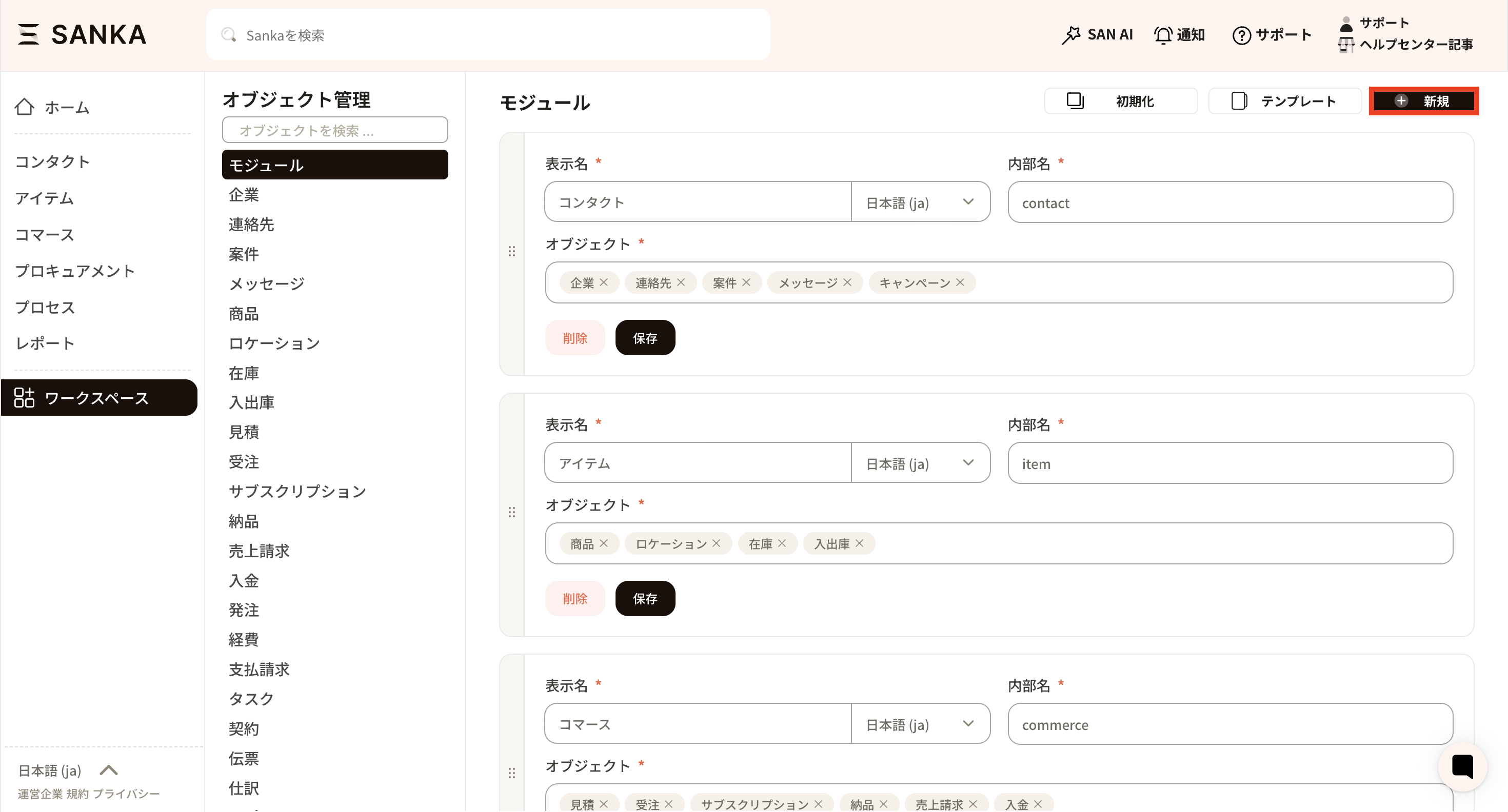
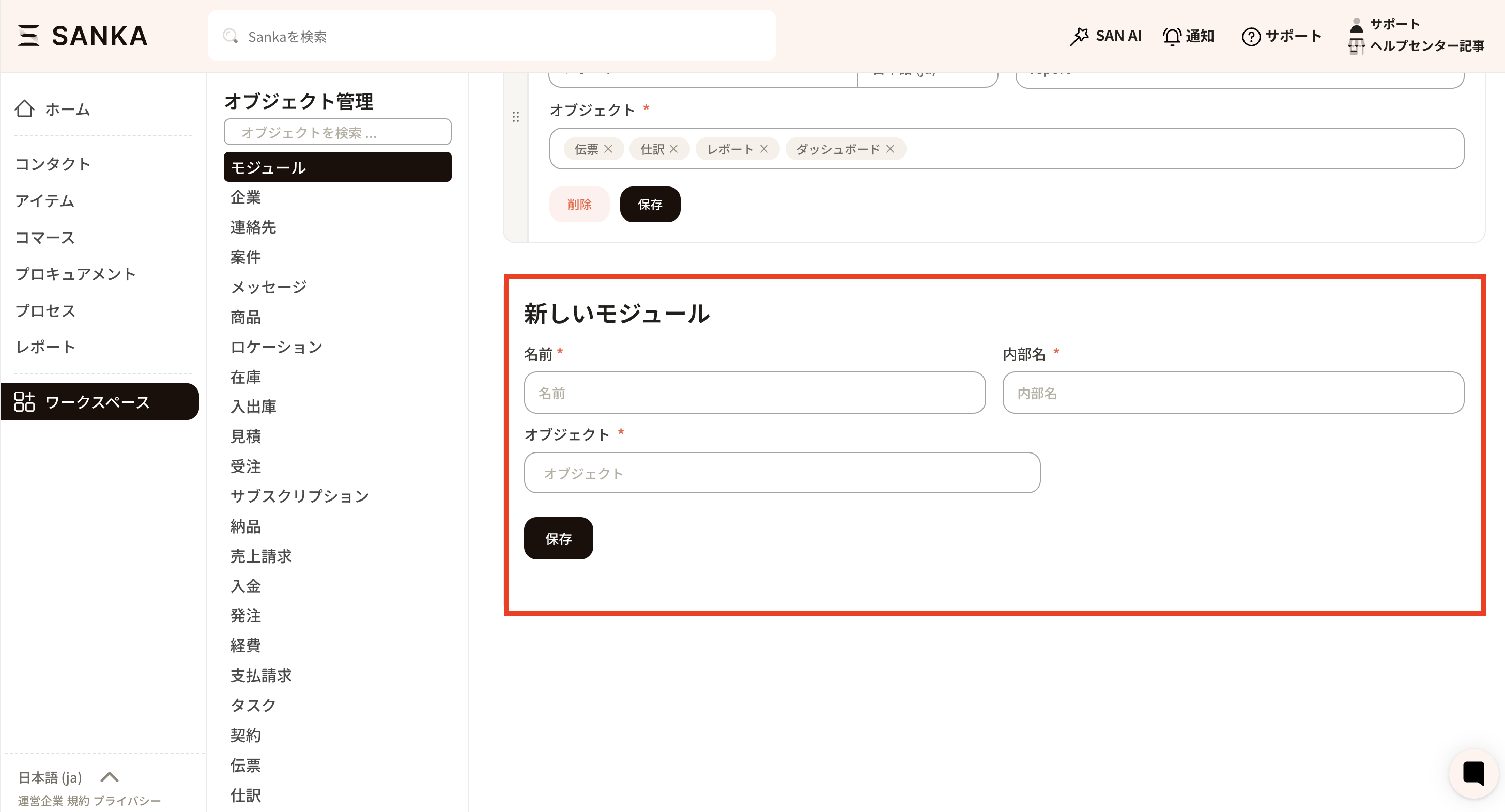
Click New.
A new module frame appears.
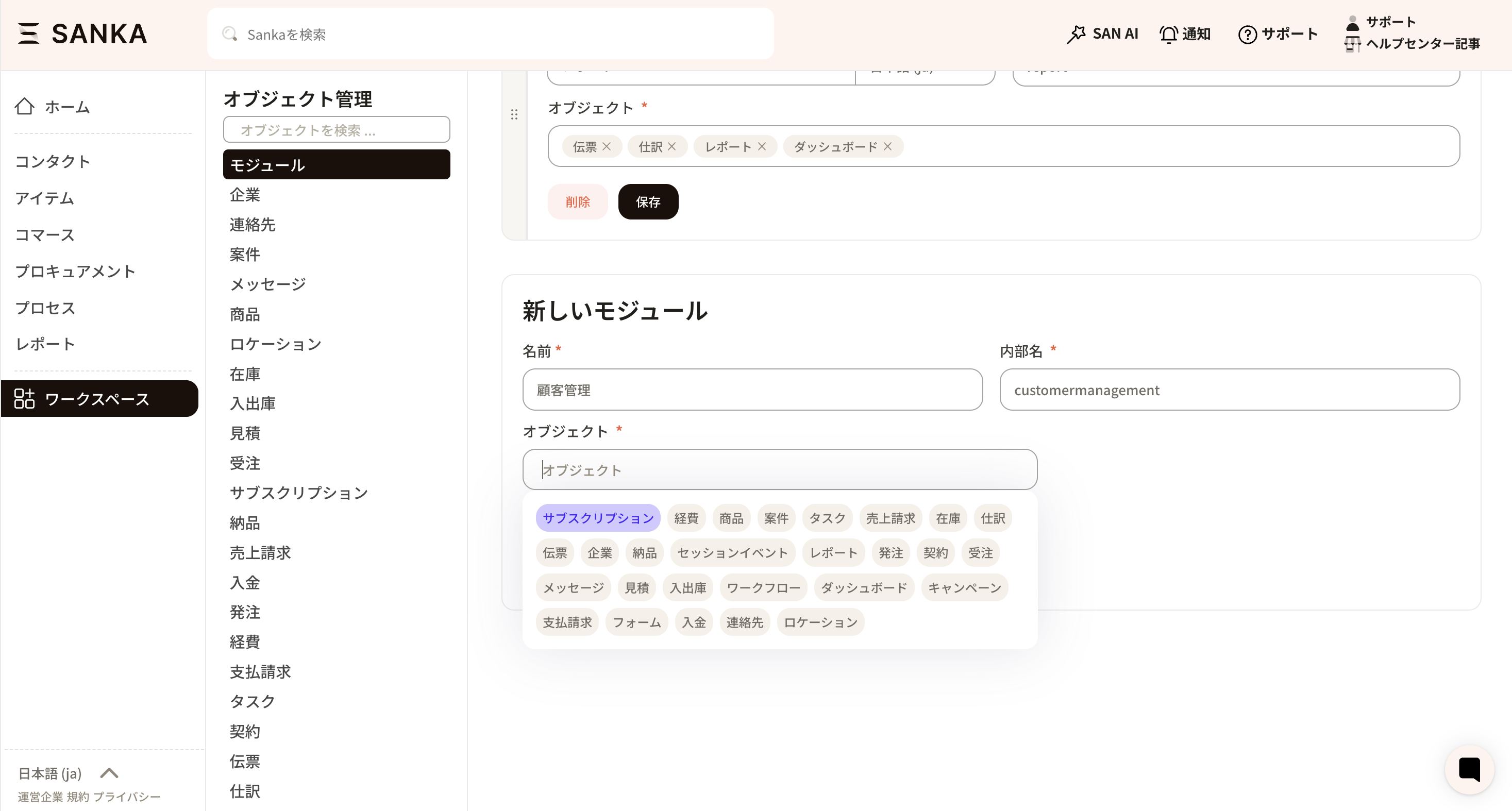
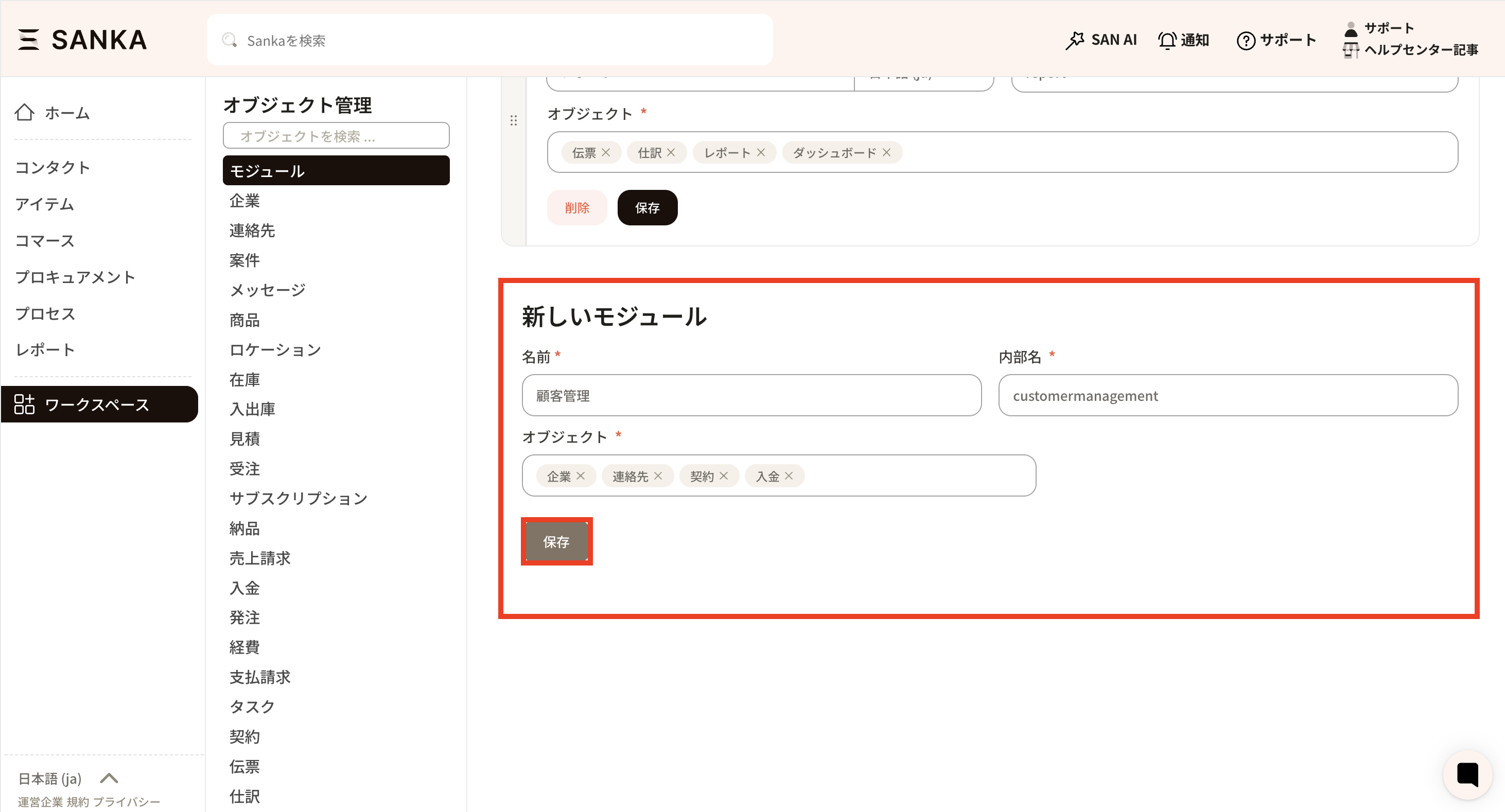
Enter the module name and internal name. The module name is shown in Sanka. The internal name is used as the module identifier and should stay stable after users or workflows depend on it.
Click the object area, select the objects that belong in the module, then click Save.
Default module structure
When modules are initialized, Sanka applies the default structure below.
Check whether the object is included in a module and whether the user has permission to view that object. If the object is in a module but still hidden for one user, review the user's role and object permissions.
An action or workflow is not available
Check the module, object, user permission, and workflow/action configuration. Actions and workflows do not bypass object visibility, required fields, module availability, or user permissions.
Records disappeared from navigation
Removing an object from a module hides it from navigation but does not delete records. Add the object back to a module or open it through a direct object page if your role allows access.
Default modules look different from this guide
Your workspace may use custom modules or a plan-specific setup. Review recent workspace changes, module initialization history, and admin changes before treating the layout as broken.
Checkpoints
Use module setup, user permissions, object settings, workspace logs, and audit logs to confirm access issues before replying to a customer or asking AI to make a code change.
Search Sanka...
Review module and permission access
Logs
Search logsAll actionsAll dates
ID / ActionDateTarget / ItemChangeActor
3Reviewed module setup2026/05/10 09:00Commerce moduleConfirmed Order and Invoice are included in navigationClaude integration
2Checked user permission2026/05/10 09:10Staff user accessConfirmed user can view Orders but cannot edit InvoicesSanka admin
1Reviewed workspace log2026/05/10 09:20Module changesConfirmed module reorder did not delete recordsSanka user
A safe review should include the module, object, user role, object permission, recent module changes, and whether records still exist outside navigation.