Understand how contract records work in Sanka, including PDFs, signers, signature requests, statuses, related records, and AI checkpoints.
Last updated: July 14, 2026
The Contract object manages agreements that need a document, signer, review status, and relationship to a customer, supplier, employee, deal, order, or project. Use contracts for NDAs, sales agreements, purchase agreements, renewal documents, statements of work, and other records that require a controlled signing flow.This reference explains what a contract record should contain, how signature requests behave, and what to check before creating, sending, updating, importing, or troubleshooting contracts with AI or manual work.
Claude/Codex
Review this contract before I send it for signature. Check the PDF, signer names and emails, company, related deal or order, required fields, signature fields, missing approvals, and whether sending is safe. Do not send it yet.
Reviewing contractI reviewed the contract draft. Confirm the signer email, related record, signature fields, and approval evidence before sending.
Ask for another contract check...
What a contract record represents
A contract record represents one agreement or signing packet. It should make the document, signing parties, status, and business context clear.Common fields include:
Contract ID or record ID
Contract name, type, status, and owner
Uploaded PDF or document file
Sender, signer names, signer email addresses, and signing order when used
Free text, stamp fields, signature fields, and date fields placed on the document
Related company, contact, deal, order, purchase order, subscription, task, employee, or custom object
Source details from UI, CSV, integrations, actions, workflows, or AI-assisted drafting
Contract fields and statuses can vary by workspace, but the record should always make it clear whether the document is a draft, sent for signature, signed, rejected, expired, canceled, or needs review.
Review before sending
Sending a contract is customer-facing. Ask AI to prepare or review the draft first, then have a person confirm the recipient, document, fields, and approval evidence before sending.
Sample prompt
/sanka Review this contract draft before sending. Check the PDF file, contract name, related company, contact, deal or order, signer names, signer email addresses, signature fields, free text, required approvals, duplicate contracts, and permission to send. Do not send the signature request yet.
For bulk imports or updates, review matching keys and signer fields before running the import.
Sample prompt
/sanka Review this contract import before running it. Map contract ID, contract name, status, owner, related company, related contact, signer name, signer email, document file, source ID, and duplicate key. List rows that need manual review. Do not create or send contracts yet.
Contract record creation flow
Use this flow to create a contract draft from a PDF and prepare a signature request.
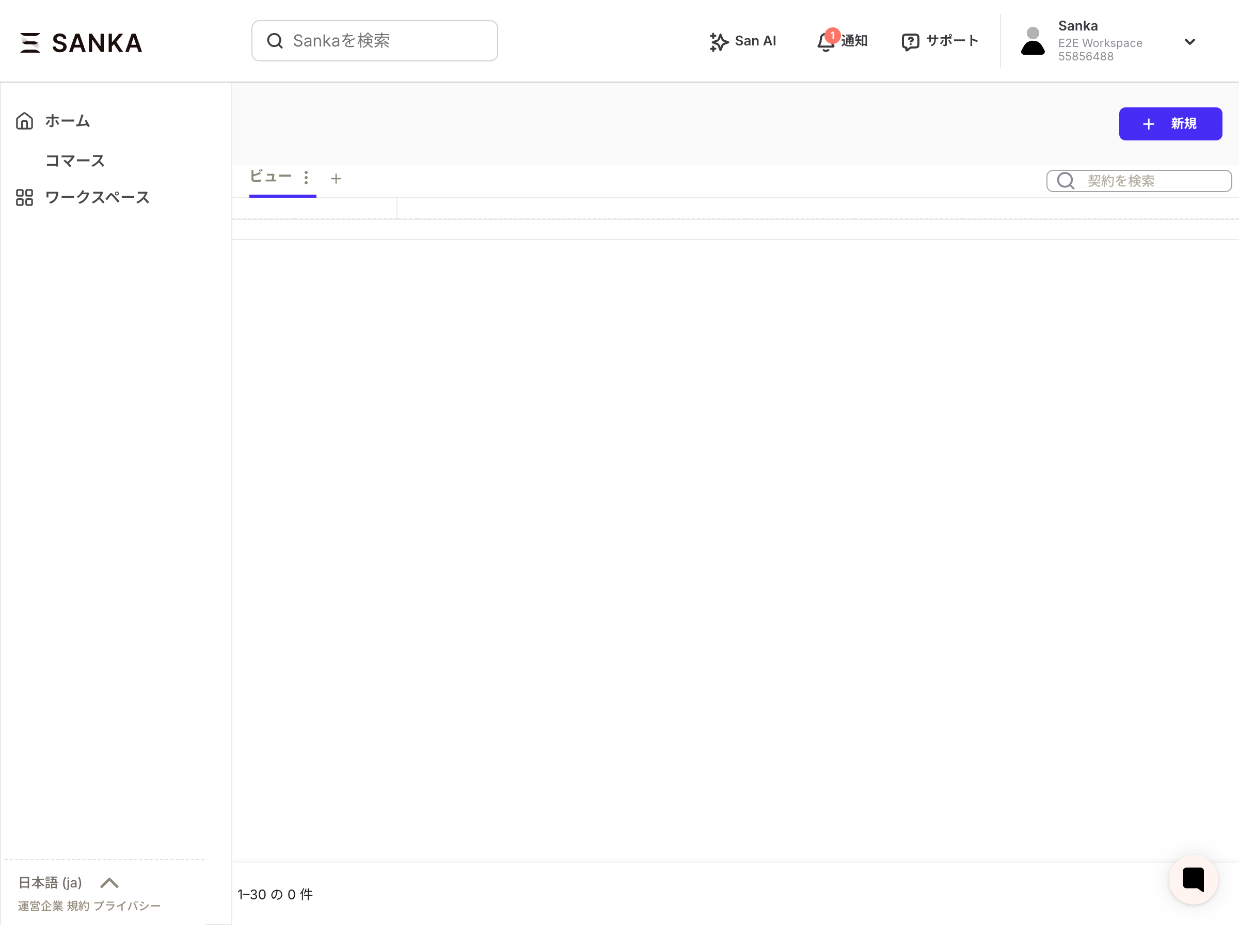
1. Open a new contract
Open the Contract object and select New. The create drawer is the starting point for uploading the document and setting the signing details.
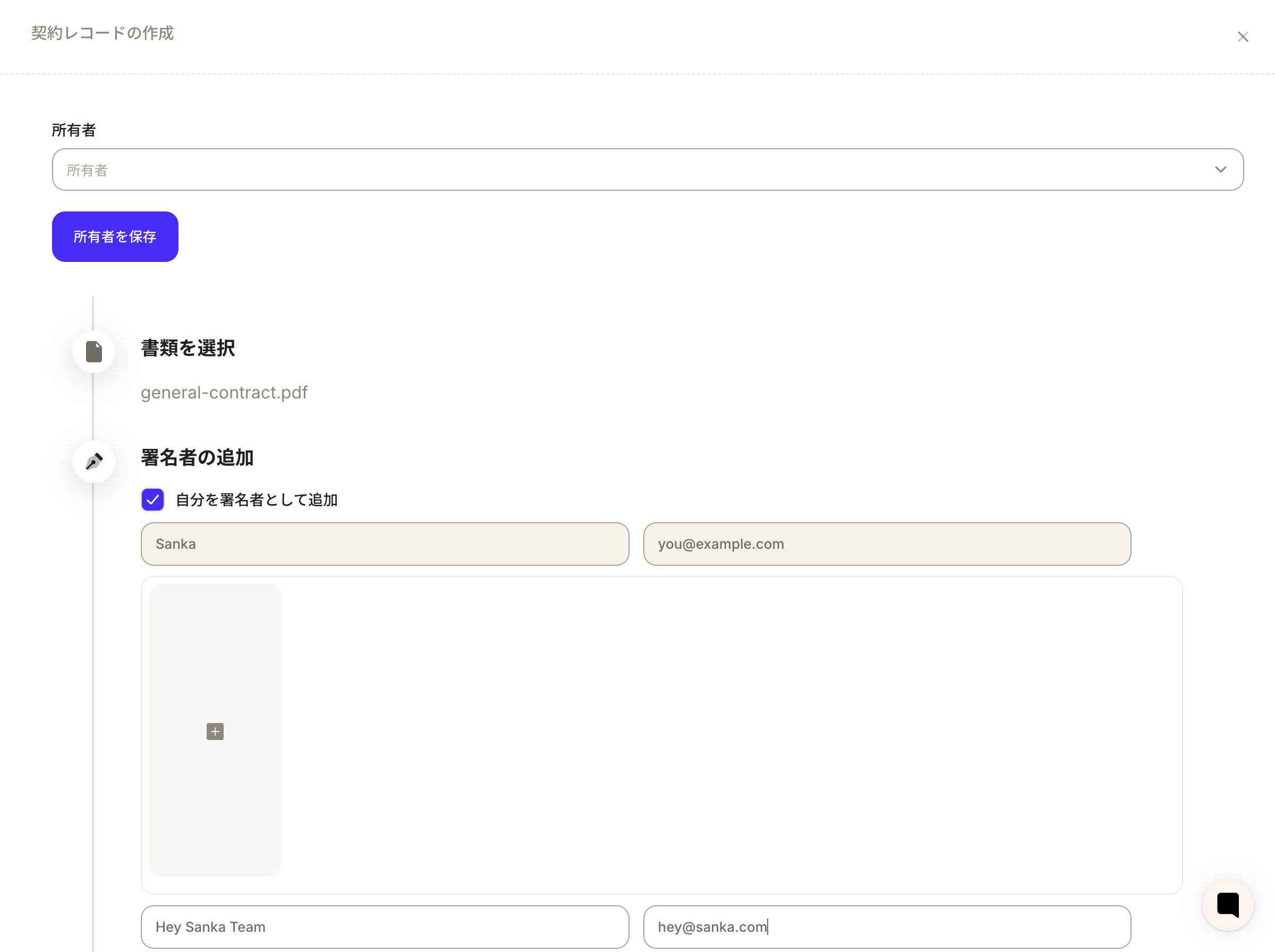
2. Upload the PDF and register signers
Upload the unsigned PDF using Select document.
Add yourself as a signer if your signature is required.
Add the counterparty signer name and email address.
Connect the contract to the related company, contact, deal, order, purchase order, subscription, or task when relevant.
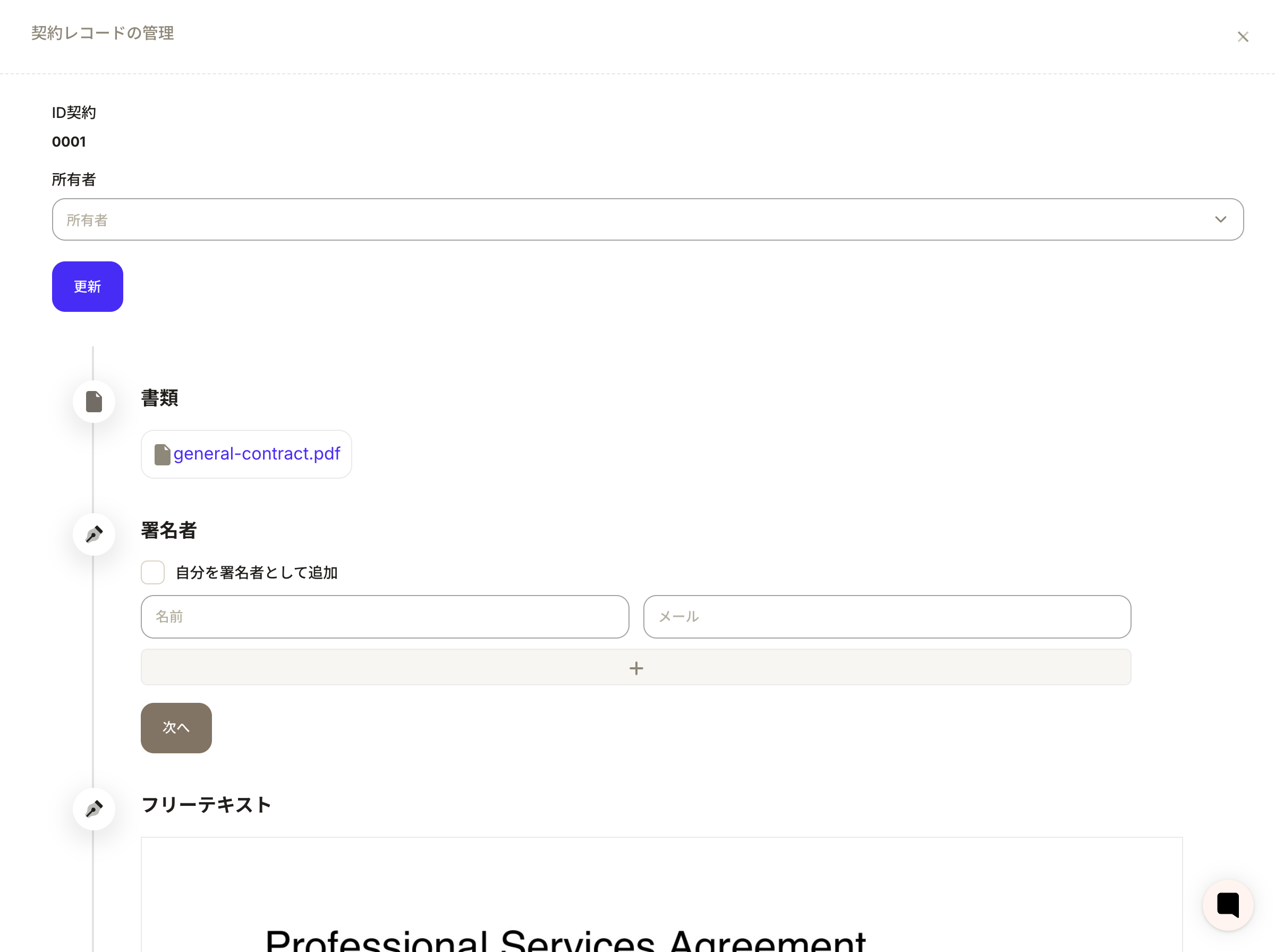
3. Place fields and prepare to send
Place free text, stamp, signature, and date fields on the document. Confirm the recipient and fields before sending. After the signature request is sent, the contract status should update as the signer opens, signs, rejects, expires, or completes the request.
Expected behavior
When a contract is created or sent successfully:
It appears in the Contract object list unless it is archived or hidden by the current view.
The uploaded document, signer details, owner, related records, status, and custom fields are saved.
A signature request is sent only after the send action is confirmed.
The contract status changes as the signing process progresses.
Related records can show the contract as agreement context.
Logs and record history can show who created, edited, sent, signed, rejected, canceled, or archived the contract.
Contract actions do not bypass permissions, required fields, signing rules, workspace module availability, approval needs, recipient validation, or audit history.
Troubleshooting
The signer did not receive the request
Check the signer email address, spam or security filtering, whether the request was actually sent, sender permissions, and whether the contract is still a draft.
The wrong person received the contract
Do not resend or create a replacement until the original request is reviewed. Check signer mapping, contact email, related company, source import row, workflow action, and audit history.
The contract status did not update
Confirm whether the signer opened or completed the request, whether the request expired, whether the user is viewing a filtered list, and whether the status update is delayed by email or signing provider processing.
Fields are missing from the PDF
Check whether signature, stamp, date, or free text fields were placed on the correct page and whether the uploaded PDF is the latest version.
AI cannot decide whether this is a bug
Ask AI to compare the PDF, signer email, related records, status, send history, workflow/action source, permissions, and audit log. Treat it as a possible bug only after confirming setup, recipient details, and signing state are correct.
Checkpoints
Before sending, resending, canceling, importing, or replying to a support question about contracts, check the signer, document version, related record, status, permissions, approvals, and audit history.
Search Sanka...
Review contract lifecycle
Logs
Search logsAll actionsAll dates
ID / ActionDateTarget / ItemChangeActor
3Contract draft reviewed2026/05/20 10:00Mutual NDAChecked PDF, signer email, and related companyLegal admin
2Signature request sent2026/05/20 10:15Mutual NDASent after approval and signer confirmationOperations admin
1Status checked2026/05/21 09:30Mutual NDASigner completed the request and status moved to signedClaude / Codex
Contract review should confirm the document, signer, status, related record, and send evidence before any customer-facing action.