How to Invite and Manage Users and Permissions
Learn how to invite users, manage licenses, and assign permission sets.
Last updated: July 14, 2026
Overview
This help article explains how to invite users, manage licenses, and assign permission sets in Sanka. Use it to add team members and give each person access that matches their role. Use this guide when adding teammates, changing roles, or troubleshooting why a user cannot see or edit an object. Permissions should be checked together with modules and workspace settings before treating an access issue as a product bug.Sample prompt
/sanka Review this user's access issue before making any changes. Confirm the workspace, user role, license type, object permissions, module visibility, owner or assignee fields, SSO or invite status, and the exact page or action they cannot access. Do not change roles or permissions until I approve the plan.User Invitation Procedure
Open User Management from the Workspace
① From the menu on the left side of Sanka, select “Workspace”. Click “User Management” to move to the user management screen. *Only administrators can add users.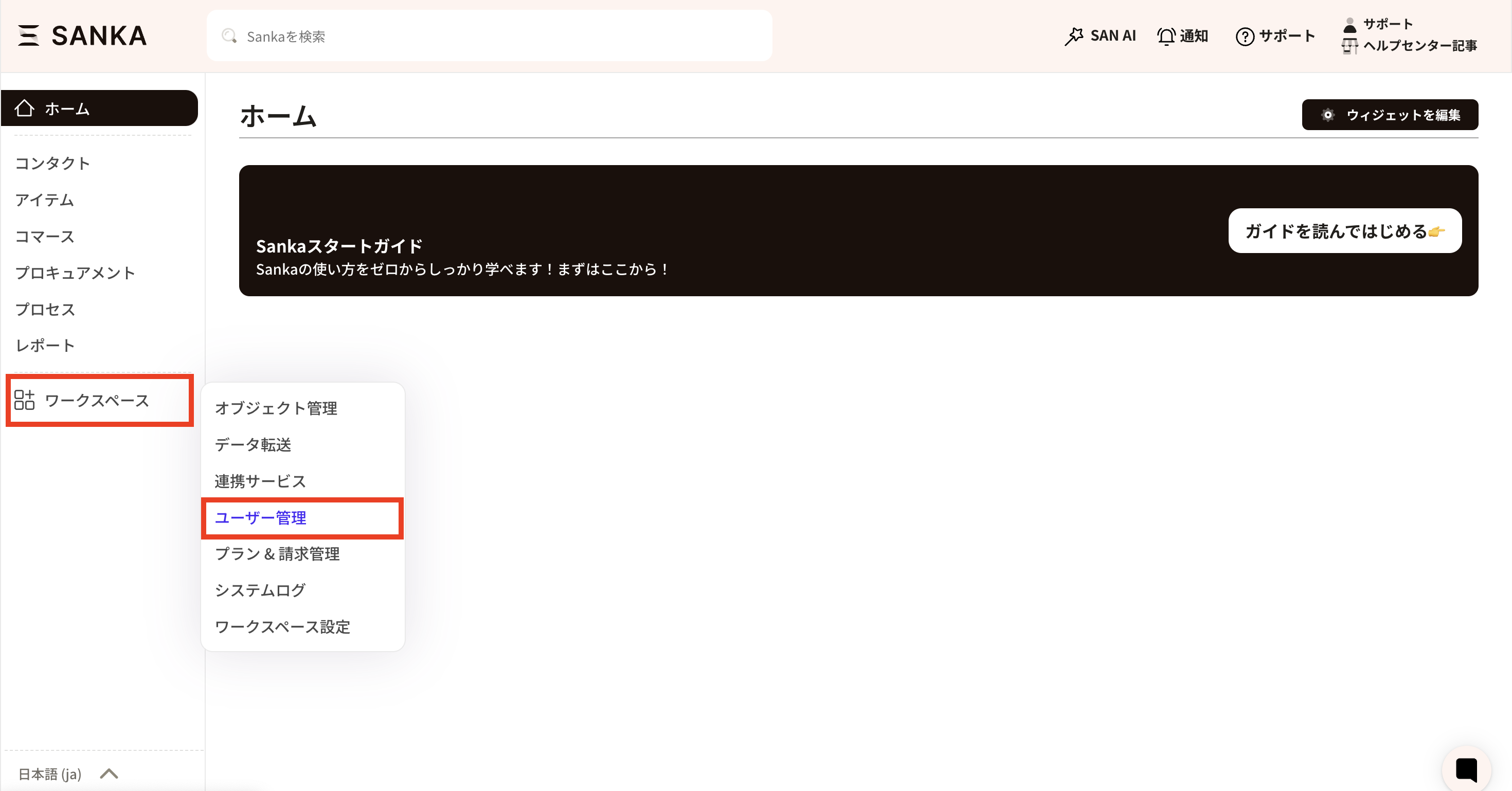
Invite Users
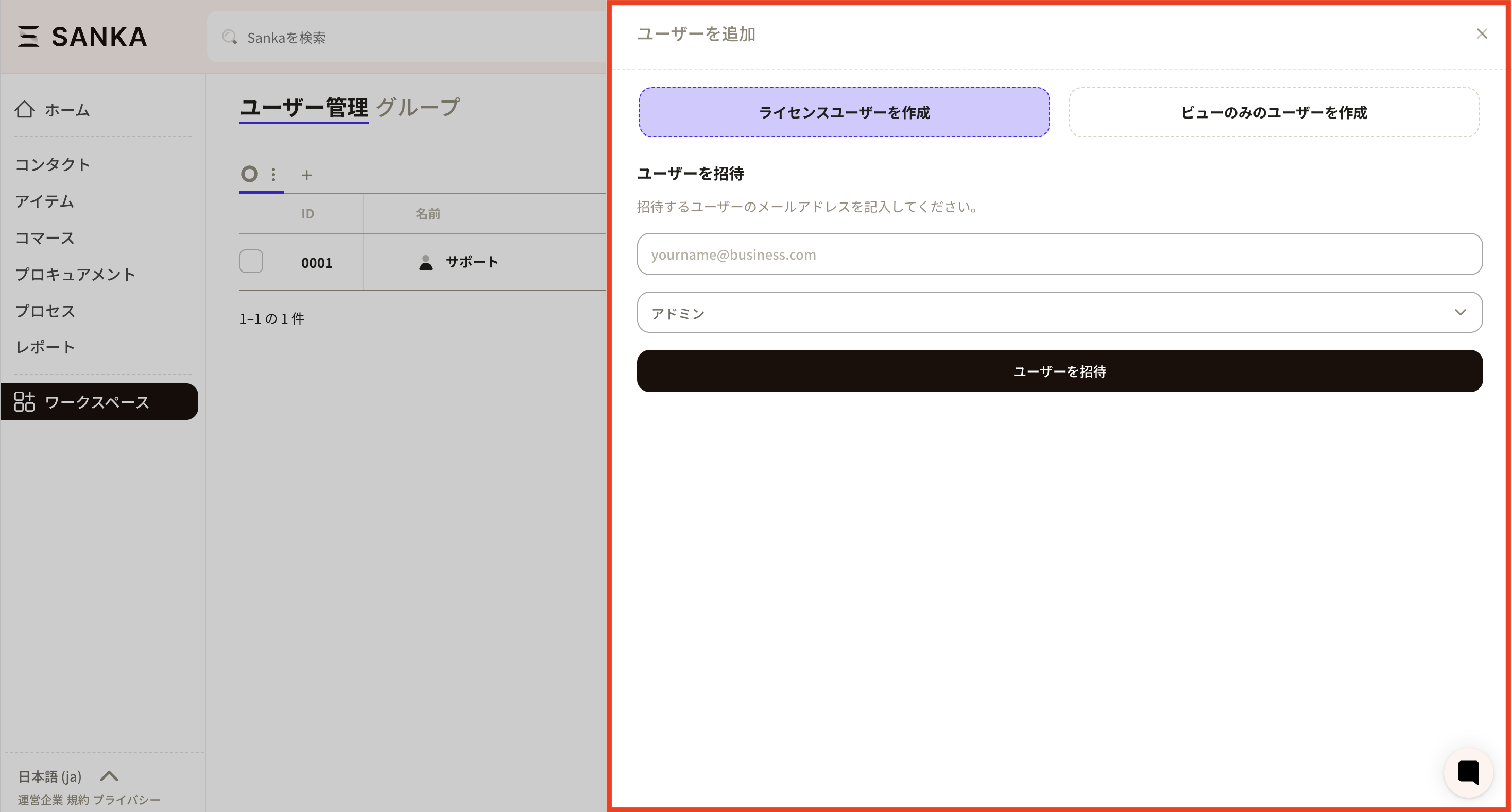
① Click the "Add User" button on the left side of the user management screen.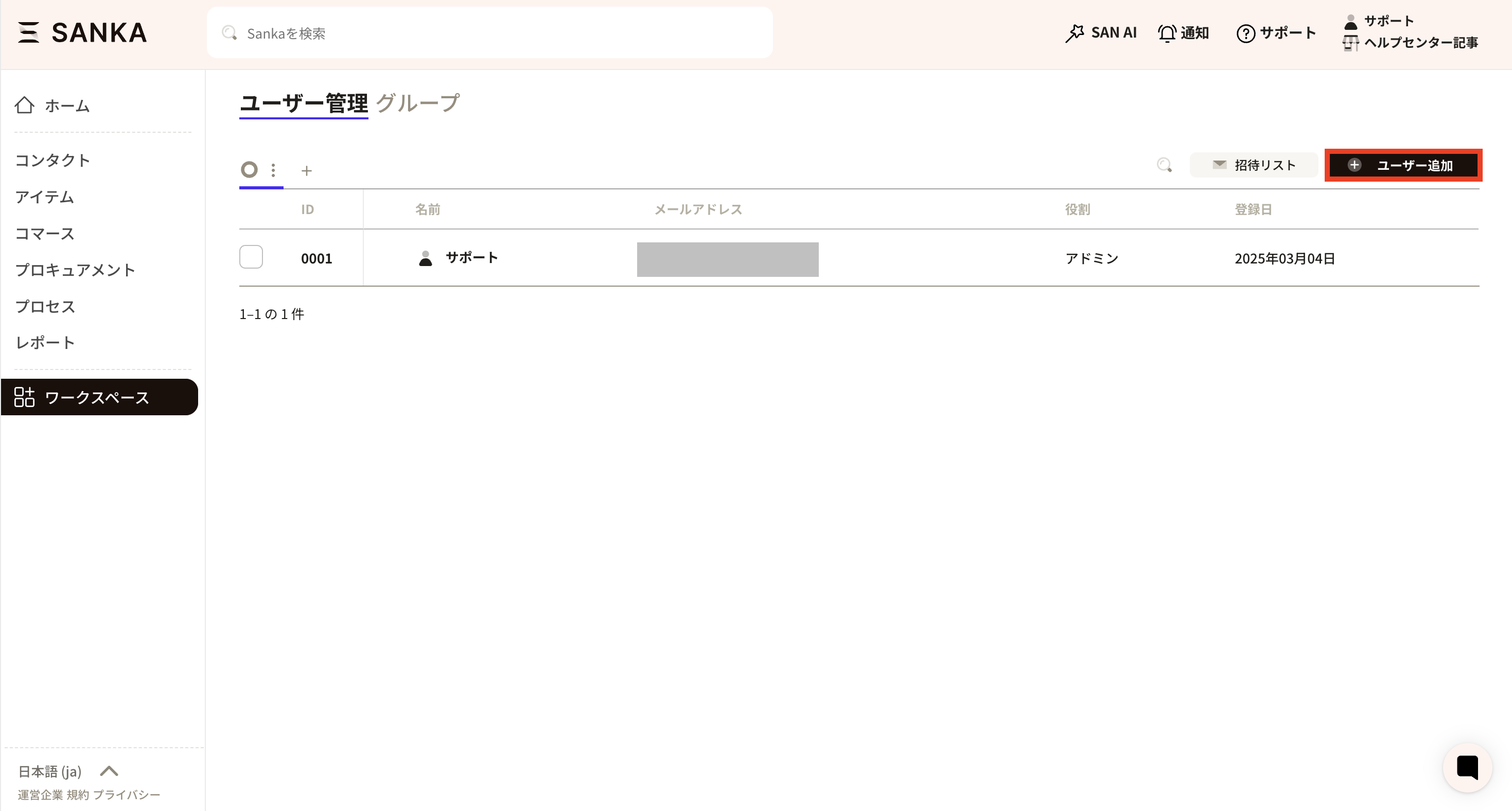 ② Proceed to add users. Select whether the user is a "Licensed User" or a "View-Only User." Next, enter the email address of the individual to be invited. Then, set either admin privileges or staff privileges.
Licensed User: A user who is permitted to perform editing and is counted as one license.
② Proceed to add users. Select whether the user is a "Licensed User" or a "View-Only User." Next, enter the email address of the individual to be invited. Then, set either admin privileges or staff privileges.
Licensed User: A user who is permitted to perform editing and is counted as one license.View-Only User: A user with view-only access who is not counted as a license. An invitation email will be sent to the invited user’s email address. Please follow the instructions in the email to log in to Sanka.
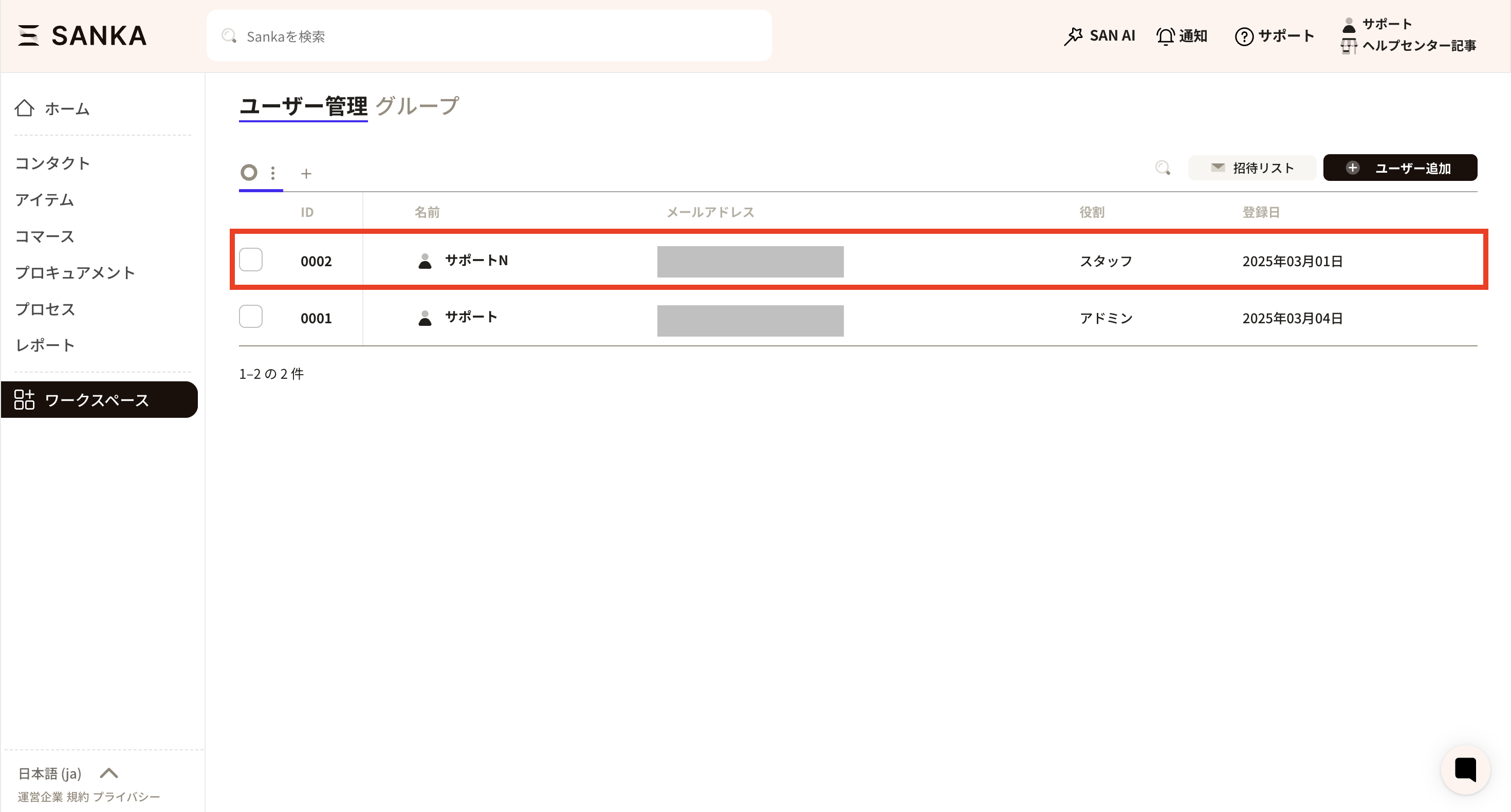
 Once approved, they are newly added.
Manage Access with Permission Sets
Permission sets let admins group access rules and apply them to workspace members. Instead of configuring every user from scratch, you can create permission sets for common roles such as sales, accounting, warehouse operations, or external partners. Use permission sets when you want to:- Separate access by role or responsibility
- Allow view-only access while limiting create, edit, or delete actions
- Standardize permission review when adding new members
- Give external partners access only to the areas they need
How to Manage Permissions
About Permissions
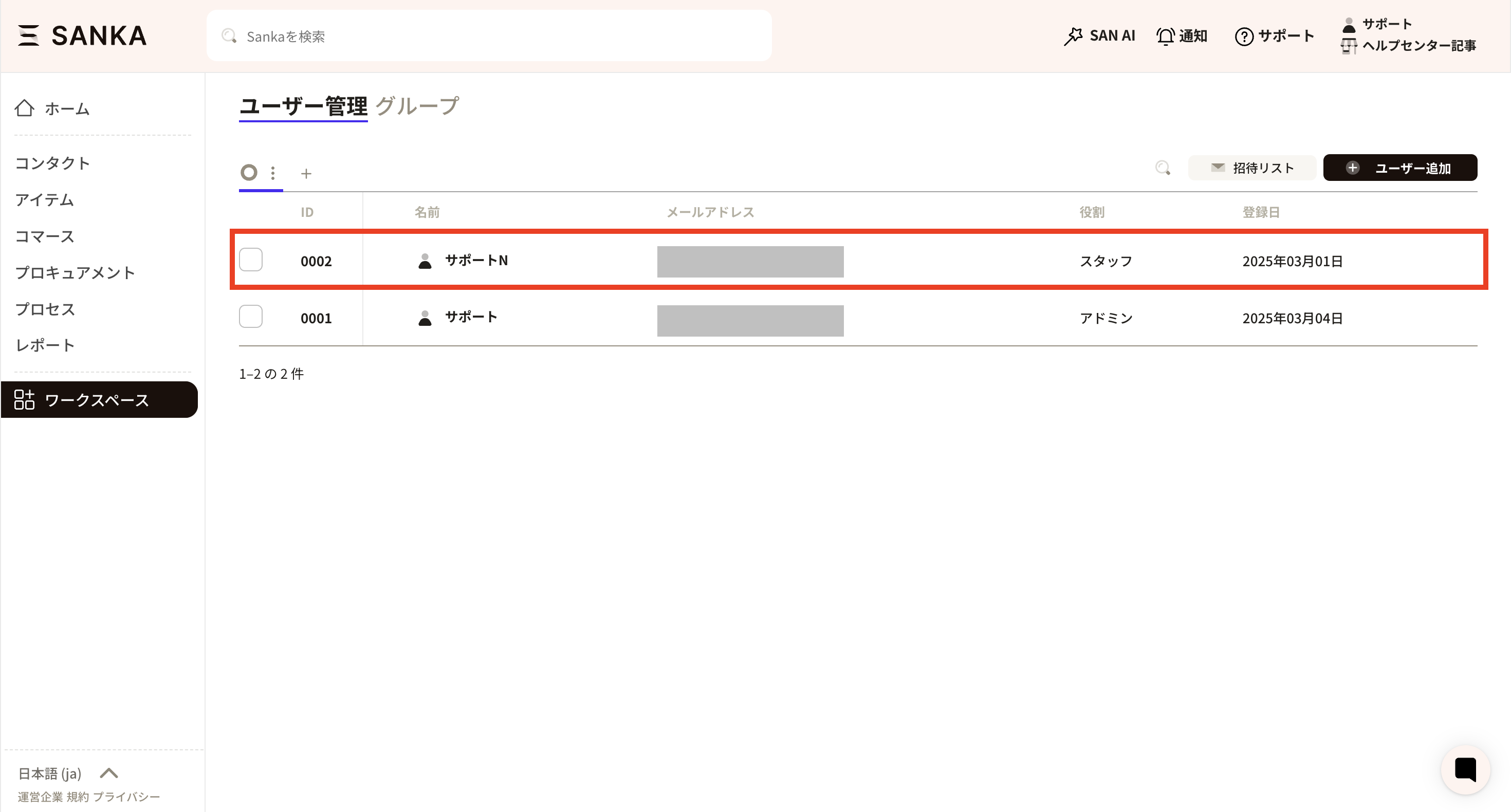
Admin: This permission grants access to all functions, including registering, editing, and deleting records, inviting users, managing payment information, and reviewing logs. Staff: Based on the function access restrictions set by the Admin, this permission allows the use of Sanka. For example, it is possible to view products, but not edit them. These settings can be configured by the Admin. View-Only: This user can view records within the configured access restrictions, but cannot edit records. Partner: When implementing Sanka through an external vendor, you can grant the same privileges as an admin without incurring license fees. Support: This privilege enables access to the workspace with the same permissions as an admin during Sanka support. As with partners, no license fees are required. Permissions are evaluated together with module visibility, object settings, and workspace settings. For example, a Staff user may have access to Orders but not Invoices, or may be able to view a record but not export, archive, run an action, or change ownership.Staff Privilege Configuration Procedure
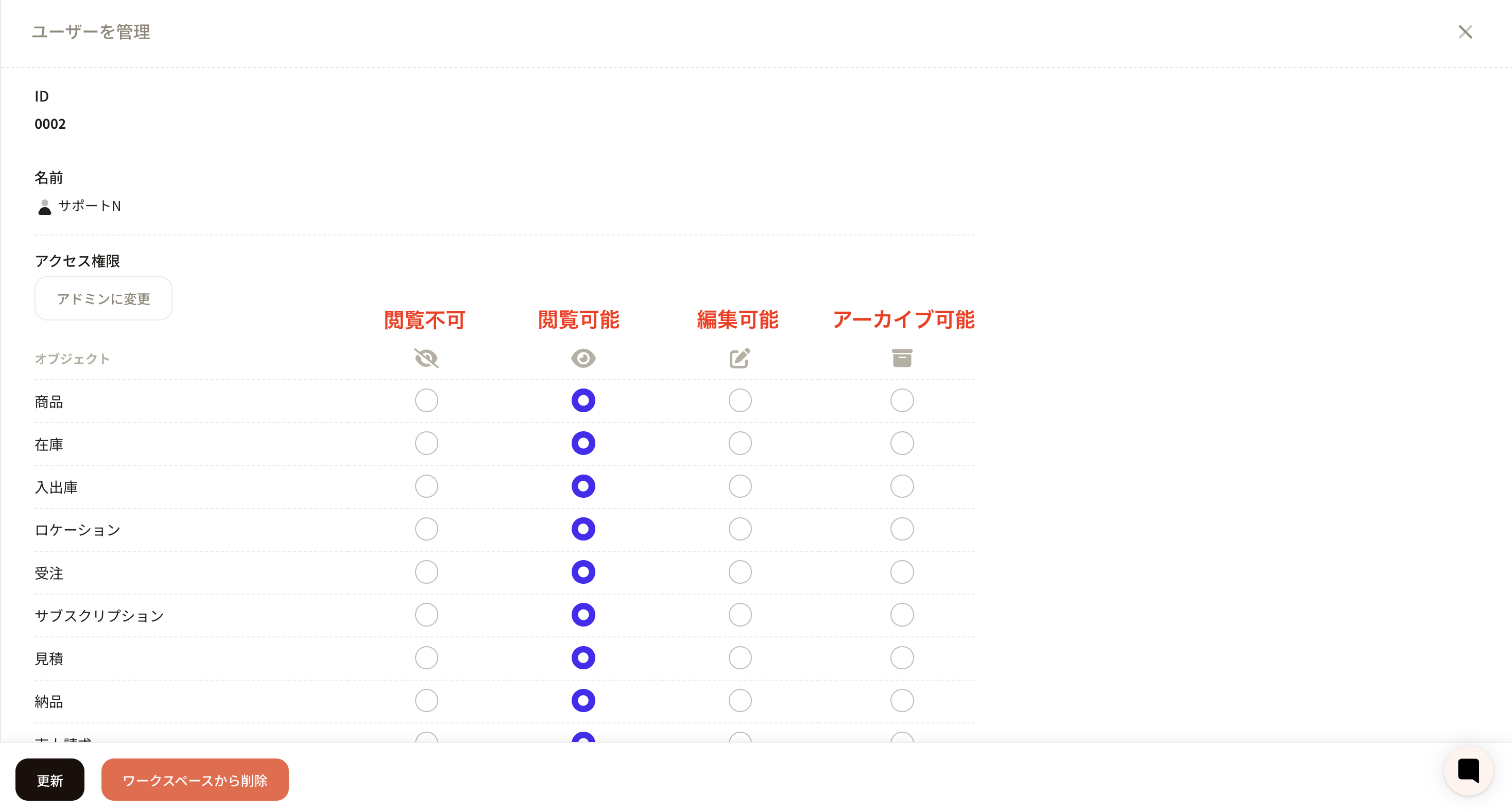
Click the ID of the relevant staff member to display the user management screen.Review the user's license and permission set, then adjust the access scope as needed. Once set, click the update button.
Expected behavior
When user and permission settings are configured correctly:- Admin users can invite users, manage roles, configure permissions, and review logs
- Staff users can use only the objects and actions allowed by their object permissions
- View-Only users can view permitted records but cannot edit, archive, export, or run write actions
- Partner and Support roles are intended for implementation or support access and should be reviewed regularly
- Object-level permissions affect tables, record pages, imports, exports, actions, workflows, and AI-assisted operations
- Module visibility and object permissions must both allow access before a user can work with an object normally
Troubleshooting
The invitation email did not arrive
Confirm the email address, spam folder, invite status, and whether the user already belongs to the workspace. If SSO is required, confirm the user should be added through the SSO flow instead.A user cannot see a page or object
Check the user's role, object permission, and whether the object is included in a visible module. If other users can see the object, compare their roles and object permissions before treating this as a bug.A user can view a record but cannot edit it
Review object permission for edit access, record ownership rules, required fields, and whether the record is in a locked state such as approved, sent, posted, archived, or closed.A user cannot import, export, run an action, or trigger a workflow
Check whether the user has permission for the object and whether the action or workflow itself is enabled and available for that object. Actions and workflows do not bypass user permissions or required fields.Removing a user is blocked
Confirm the user's role, whether they are the last admin, and whether the removal would affect protected support or partner access. Review ownership transfer needs before removing users who own active records.Checkpoints
Use user management, object permissions, modules, workspace logs, record ownership, and audit logs to confirm access behavior before replying to a customer or asking AI to make a code change.Review user access
Logs
Search logsAll actionsAll dates
ID / ActionDateTarget / ItemChangeActor
3Reviewed user role2026/05/10 10:00Staff user accessConfirmed user is Staff with view access to OrdersClaude integration
2Checked object permission2026/05/10 10:10Invoice objectConfirmed edit permission is disabled for the userSanka admin
1Reviewed access symptom2026/05/10 10:20Invoice export actionConfirmed export is unavailable because edit/export permission is missingSanka user
A safe review should include the user role, license type, object permission, module visibility, record owner, action/workflow access, and recent permission changes.
