Understand how Sanka integrations work, including connected services, object mapping, sync direction, troubleshooting, and AI checkpoints.
Last updated: July 14, 2026
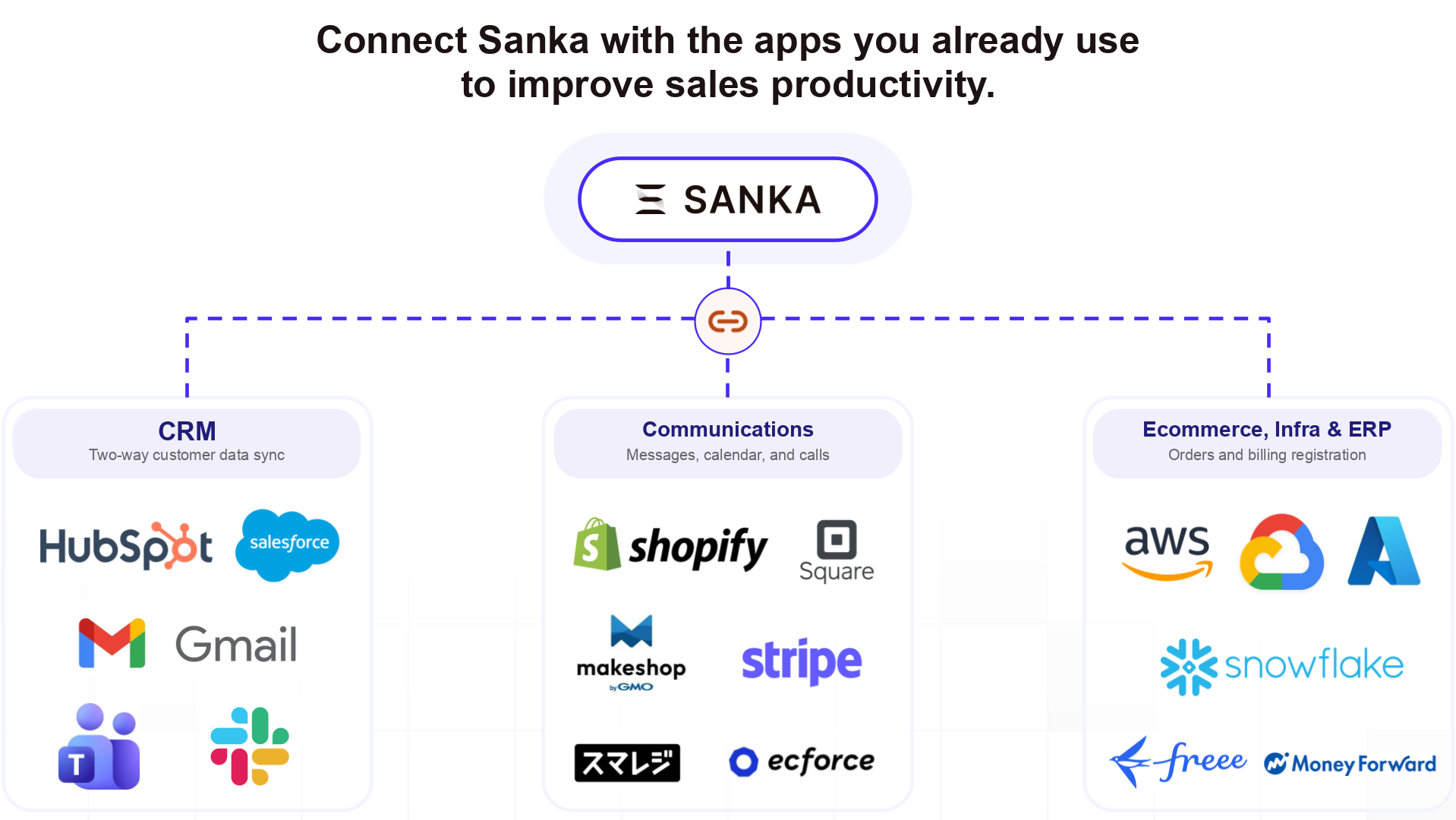
Sanka connects with CRM, AI, communications, ecommerce, billing, finance, and cloud services so teams can keep business records aligned across lead-to-cash, fulfillment, receivables, and accounting workflows.This reference explains how to plan an integration, what to check before syncing data, and how to troubleshoot missing, duplicated, or stale records without assuming every sync issue is a product bug.
What integrations do
Integrations connect records between Sanka and another system. Depending on the provider and your workspace settings, an integration may:
Import records from another system into Sanka
Export Sanka records to another system
Sync changes in one direction or both directions
Map external objects to Sanka objects, such as companies, contacts, deals, orders, invoices, payments, tickets, or custom objects
Map fields, statuses, owners, and external IDs
Trigger actions, workflows, reports, documents, or follow-up tasks
Some integrations are still in beta. Private integrations may also be available for specific customers or workflows.
Review mapping before syncing
Before turning on a sync or asking AI to update records across systems, review the mapping and expected outcome.
Sample prompt
/sanka Review this Sanka integration sync before I run it. Show the provider, sync direction, Sanka object, external object, field mappings, status mappings, owner mappings, matching keys, duplicate risks, records that may be created or updated, and what history or logs I should check after sync. Do not run or replay the sync yet.
Confirm these points:
Which provider account or workspace is connected
Which Sanka object maps to which external object
Whether the sync is inbound, outbound, or bidirectional
Which field is the matching key, such as record ID, external ID, email, domain, order number, or invoice number
Which fields can overwrite existing values
How statuses, owners, pipelines, currencies, and dates are mapped
Whether archived, deleted, or inactive records are included
Whether actions or workflows run after imported records are created or updated
Use a small record set or test view before enabling broad sync for high-volume objects.
Expected behavior
When an integration sync works as expected:
Sanka stores or uses the connected provider account needed for the operation
Mapped external records create or update the configured Sanka object
External IDs or source details are retained so future syncs can update the same records instead of creating duplicates
Field and status mappings control which values are copied
Ownership follows the configured owner or profile mapping when available
Sync history, import/export history, webhook history, or outbound event history shows what happened
Related Sanka actions or workflows run only when their triggers and conditions match
An integration does not bypass provider permissions, expired authorization, missing required fields, disabled mappings, object permissions, or Sanka workflow conditions.
Troubleshooting
Records are missing after sync
Check whether the provider account is connected, whether the sync ran, whether the object and field mappings are enabled, whether filters excluded the records, and whether the user has permission to view the destination object.
Duplicate records were created
Check the matching key and external ID mapping. If the provider did not provide a stable ID or the mapping used a weak key such as a name, compare email, domain, phone, order number, invoice number, and source details before merging or archiving duplicates.
Fields did not update
Check field mapping, sync direction, required fields, provider field permissions, locked Sanka fields, and whether another workflow or manual edit changed the value after sync.
Status or owner is wrong
Check status mapping, owner mapping, profile mapping, inactive users, unmapped pipeline stages, and fallback owner settings.
A record was deleted or archived unexpectedly
Check whether delete or archive sync is enabled for the object, whether the provider sent a delete event, and whether Sanka is configured to unlink, archive, or ignore deleted external records.
A sync event failed or is stuck
Check integration connection state, provider authorization, provider rate limits, required mappings, sync history, webhook events, outbound events, and retry or replay history before rerunning the sync.
AI cannot decide whether this is a bug
Ask AI to compare the provider record, Sanka record, object mapping, field mapping, status mapping, owner mapping, external ID, sync direction, and sync history. Treat it as a possible bug only after confirming the connection, permissions, mappings, filters, and expected sync direction are correct.
Checkpoints
Use integration history, import/export history, webhook events, outbound events, record history, and audit logs to confirm what changed and why.
Search Sanka...
Review integration sync
Logs
Search logsAll actionsAll dates
ID / ActionDateTarget / ItemChangeActor
3Reviewed sync mapping2026/05/10 10:00HubSpot company syncChecked company fields, owner mapping, and external IDClaude integration
2Inbound sync completed2026/05/10 10:15Green Salon GroupUpdated company phone and owner from provider recordSanka integration
1Checked related workflow2026/05/10 10:20Company onboarding taskConfirmed workflow created a follow-up task after syncSanka user
Integration checks should include the provider record, Sanka record, mapping, sync direction, external ID, and any action or workflow triggered after sync.