Order → Inventory Allocation
This guide explains how to allocate inventory from sales orders in Sanka and connect shortages to purchase orders.
Last updated: July 14, 2026
This guide explains how to allocate inventory from sales orders and connect shortages to purchasing. Use this flow when orders arrive from ecommerce stores, HubSpot, or other systems and you want Sanka to create inventory transactions, reserve component stock, and prepare purchase orders for items that need replenishment.
 ②The workflow creation screen will be displayed, so let's set it up.
 ③Set the owner and title (workflow name).
 ④Next, set the trigger.
 ⑤Next, we will set the conditions.
 ⑥Click the save button for the workflow and it will be registered in the workflow record list. Next, press the Run Workflow button to start the workflow. Inventory will now be reserved every time a sales order is imported.


Set up automation for stock reservation from order records
If you want to automate inventory allocation based on order information imported into Sanka from each EC shop, set up a workflow. ①Press the new button on the workflow object.
②The workflow creation screen will be displayed, so let's set it up.
③Set the owner and title (workflow name).
④Next, set the trigger.
- Please select an event trigger as the trigger.
- Select Create Record as the action.
- Please select "Order" as the object type.
⑤Next, we will set the conditions.
- Select Create Object Record as the action.
- Please set the object to be in/out.
- Select the action as Create a receipt/issue record and check Use data from trigger.
- Select warehousing type for warehousing type.
⑥Click the save button for the workflow and it will be registered in the workflow record list. Next, press the Run Workflow button to start the workflow. Inventory will now be reserved every time a sales order is imported.
Connect shortages to purchase orders
After inventory is allocated against an order, create a purchase order when an item is below the required quantity or safety stock. Keeping orders, inventory, and purchase orders connected makes it easier to see both the customer-side demand and the purchasing-side response in one workflow. The basic flow is:- Review the order line items.
- Use the inventory allocation workflow to create inventory transactions for the ordered items.
- Check the post-allocation inventory quantity and safety stock.
- Create purchase orders for items that need replenishment.
- Update inventory after receipt, then continue fulfillment and downstream processing.
Enable inventory reservation from component products
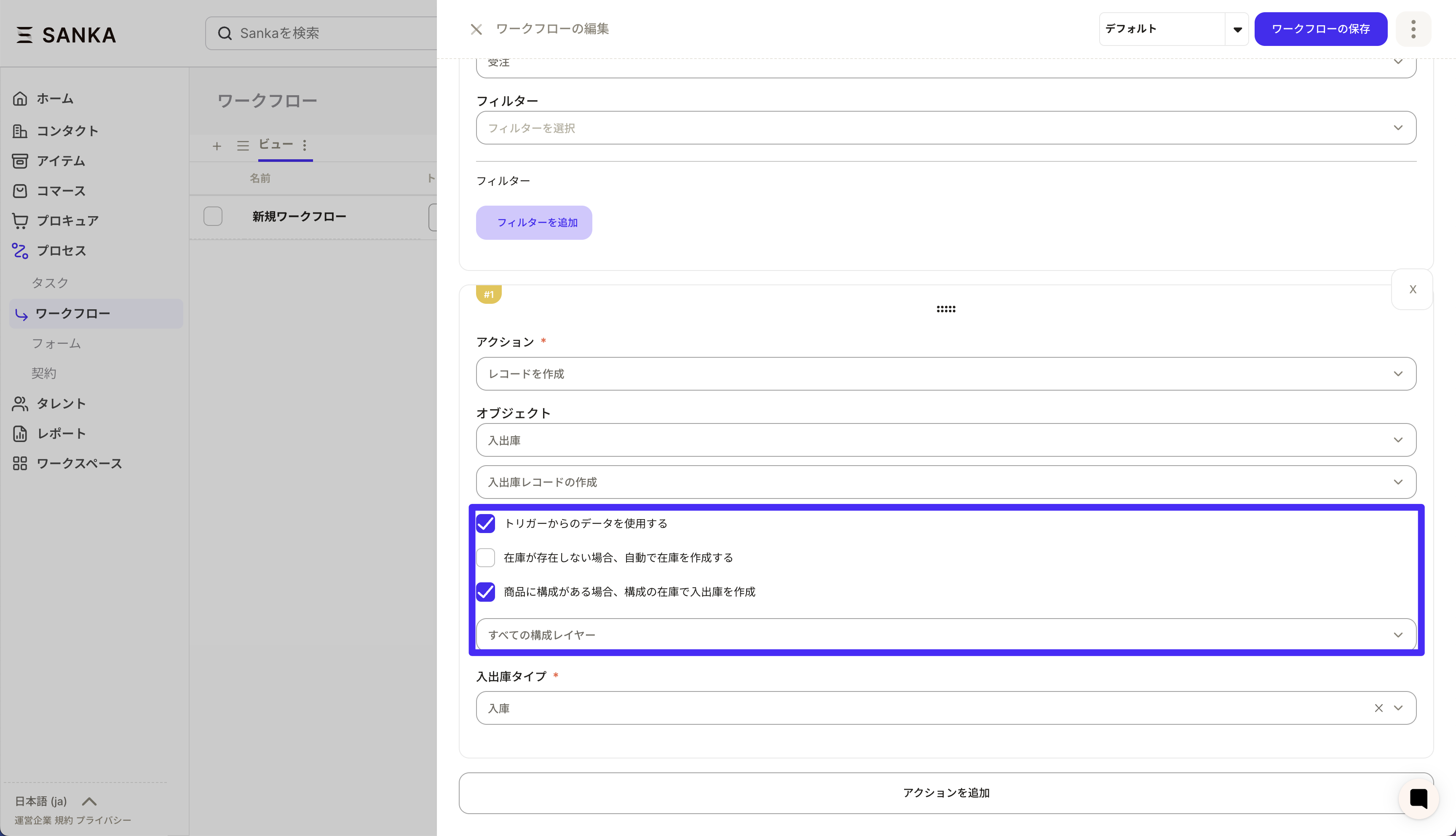
If the parent product has component parts and you want to subtract the inventory of the child product, turn on ``If the product has components, create goods receipts and issues using the inventory of the components'' in the action settings. Items with no configuration are automatically processed with the parent item's inventory, so an inventory transaction is created in both cases.
Configuration steps
- Open the Create receipt/issue record action on the workflow editing screen.
- Check Use data from trigger.
- Turn on Automatically create inventory if inventory does not exist as necessary (automatically generates inventory even if inventory for child parts is not created).
- **If the product has a configuration, check Create receipts and issues with the inventory of the configuration.
- Under Select composition layers, specify "All composition layers" or 1 to 3 layers.
- Save your changes and start the workflow.
Points of operation
- If the component exists: Creates an issue (or receipt) for the child part of the specified layer.
- If the component does not exist: Create the same receipt or issue in the parent item's inventory.
- If you turn on "Automatically create inventory", the transaction will be registered after automatically generating uncreated inventory for both child parts and parent items.
